3.1 My New Library - How to add books to your library
This will walk you through adding your first book to your library in both automatic, and manual mode.
Here we go, baby!
The Automatic process.
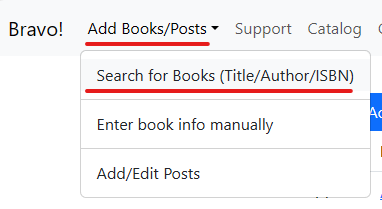
1. Go to "Add Books/Posts" and select "Search for books"
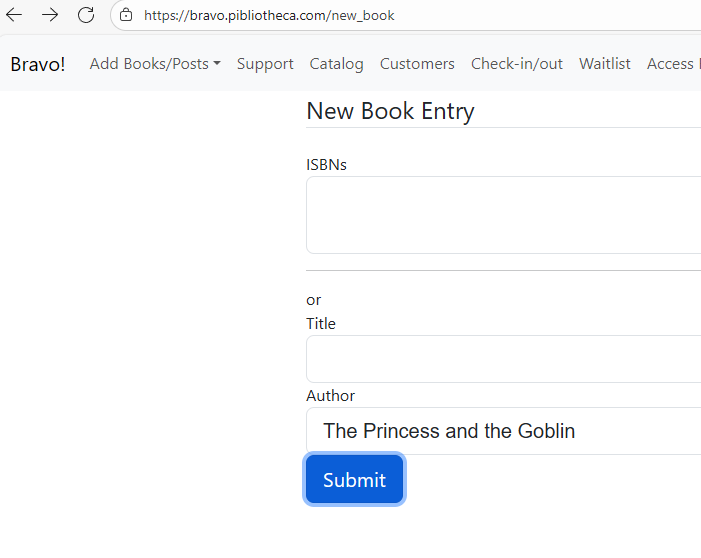
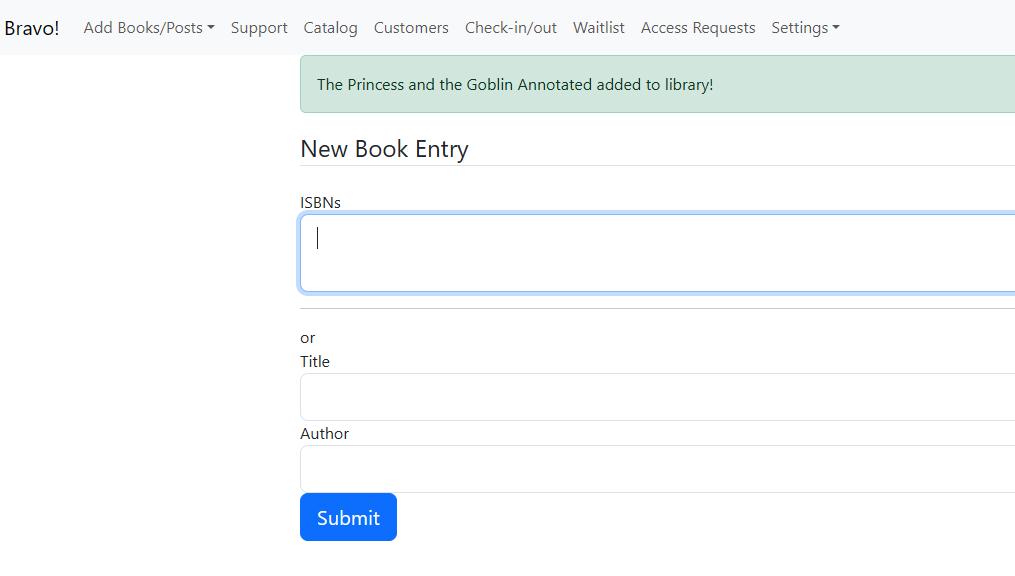
2. In "New Book Entry" you can do one of two things; either you can put in the ISBN of your book, which will return only your exact book; or you can put in the title, the author, or both. the more information you give it, the more accurate your search will be.
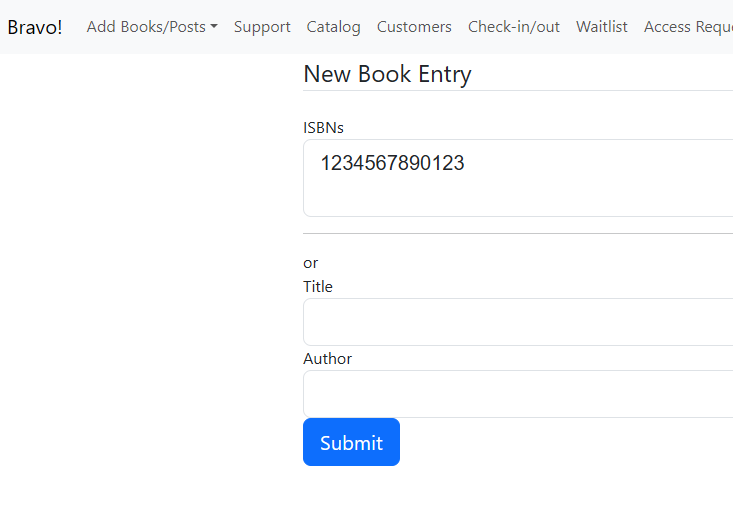
If you used the ISBN, it will tell you your book was added to your library, or that there was an error, if the book could not be found by ISBN (A barcode scanner comes in super handy here! You can enter as many ISBNs as you want, and it will add them all when you hit "submit".)
3. If you put in the title, author, or title and author, you will get a page offering a selection of the closest matches to your book that could be found.
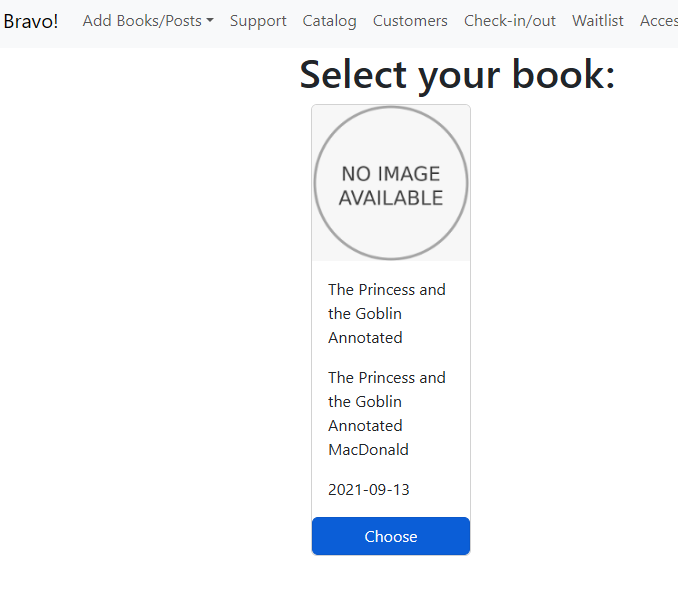
4. Clicking the "Choose" button will add the book to your Library.
5. Now the entered books will appear in your Libraries catalog!
The Manual Process:
CONFIGURATION NOTE: You can set the default status of new books to either "Available" or "Archive" in the Library settings. The default for this setting for new libraries is "Available"
1. Go to "Add Books/Posts" and click "Enter book info manually"
2. Fill out the fields. (The only mandatory field is "Title")
(for the image, you can use the URL of a image you found online, or upload you own.)
3. When you submit, the book will be added to your library catalog.